
TiviMate for IPTV: TV setup, guide and viewing checks
TiviMate is a television-focused player for your own playlists. It can be a useful option when you want a remote-operated channel guide, but you still need a compatible device, valid viewing access and a plan allowance that covers how you intend to use its features.
Check whether TiviMate suits your screen
The developer’s Google Play listing identifies TiviMate as an Android TV player designed for remote control rather than touch-first phones or tablets. It lists playlist support including M3U, Xtream Codes and Stalker Portal. Check the current listing on your device and confirm the access method your service actually supplies.
Start with the Android TV and Google TV guide if you are unsure what software your television or box runs. A product described as an Android box may not offer the same app experience as a certified television platform. On Fire TV hardware, use the model-specific compatibility checks; an Android-based installation assumption does not apply universally across Fire OS and Vega devices.
If your main screen is a phone, assess a touch-oriented application instead of trying to make a remote-focused interface fit. The mobile guide covers that decision. A useful player should make everyday controls easier, not require workarounds for basic navigation.
Compare player selection questions in the apps hub, especially if you also need a touch-friendly application on another screen. Different devices in the same home need not use identical interfaces.
Understand the two meanings of Premium
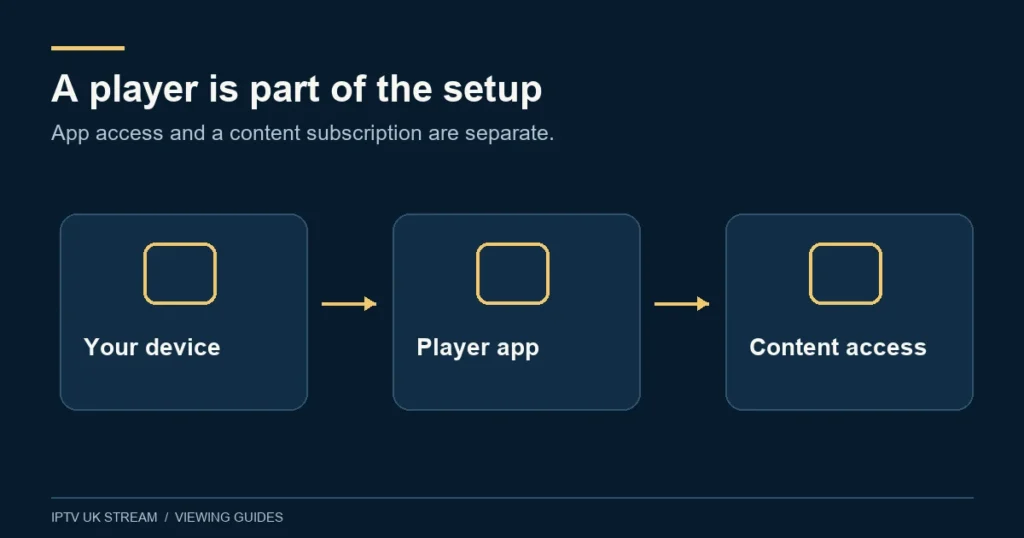
A paid TiviMate upgrade concerns TiviMate’s software features. An IPTV UK Stream Premium plan concerns the selected viewing package. They are separate purchases and should not be confused merely because both use the word Premium. The developer states that its player does not supply media content.
Check current app terms and feature availability directly with the publisher before paying. Do not assume a player upgrade is included in a viewing plan unless that specific benefit is stated and confirmed. IPTV UK Stream’s named Hot Player / IBO benefit does not automatically include a different application’s upgrade.
Keep the player purchase record separate from the viewing account details. If a feature is locked, the app entitlement may be relevant. If a channel is absent or an account has expired, buying the app again is unlikely to address the right question.
Add one confirmed playlist first
Choose the input method that matches the details supplied for your account. If you have separate server, username and password values, do not paste the entire playlist URL into a single credential field. If you have a playlist link, preserve it exactly and treat any embedded token as private.
Name the profile clearly and avoid importing several old lists during the first setup. A single known source makes it easier to identify a loading error and keeps duplicate channel names from obscuring the result. Let the initial import complete before opening extra menus or repeatedly restarting the application.
Test one ordinary item, return to the guide and open another. Check that the remote’s select and back actions feel predictable. Then close and reopen the player. Only after that baseline works should you invest time in a detailed favourites layout. The installation guide provides a broader checklist for first use.
Make the programme guide useful for UK viewing
A clear grid is helpful only when it receives appropriate programme data and matches the channel list. If channels play but programme names are absent, distinguish that from a video failure. Confirm which guide source is expected for your access method, and avoid importing an unrelated guide merely because it contains familiar channel names.
Check a current programme against UK local time. If every entry is shifted by an hour, record that observation before changing multiple offsets. Around the transition between GMT and British Summer Time, a careless manual correction can create a second offset later. Make one documented change at a time and preserve the original setting.
The EPG guide explains data availability, matching and timing. A guide entry is descriptive information; it does not itself establish a right to watch the channel, a recording or catch-up availability. Check each of those separately when planning how you will use the player.
Catch-up and recording need more than a button
TiviMate’s developer lists catch-up and recording among its capabilities, but a capability in the app is not a promise that every source supports the workflow. Ask whether the specific channels and account you intend to use have catch-up, and confirm any available window with support. The catch-up guide covers those limitations.
If you intend to record, first establish whether the content and service permit that use and whether the player’s current edition supports your chosen destination. A device needs suitable available storage and a working route to it. Do a short check of your permitted recording workflow before relying on it for a full programme; confirm playback of the saved result as well as the appearance of a timer.
Do not assume recording works while the device is asleep or that an external drive is configured correctly just because it is plugged in. Consult the current device and player guidance for your arrangement. A missed recording can involve power, storage, source availability or account limits, so record which part failed.
Multiview and concurrent streams
The developer advertises multiview, which presents more than one channel at once. The practical implication is that one physical television can involve several active streams. Before using it, clarify the viewing allowance and device capacity for the number of streams you intend to open.
For example, watching two channels in separate panes while another person watches on a tablet is a different demand from one programme on one screen. Do not select a plan solely by counting the boxes in the home. The multi-device guide explains how to discuss concurrent use with support.
Begin with one stream while checking ordinary playback. Add advanced functions individually so that a performance or access problem has a clear trigger. If multiview fails while a single channel plays normally, report that precise difference rather than deleting the original account profile.
Organise channels for a shared television
Build favourites around actual household use. A compact list can make navigation easier than repeatedly scrolling through every available category. Keep the original list accessible while testing your organisation so you can distinguish a hidden item from a genuinely missing one.
Where you use parental controls, test them from the perspective of the person they are intended to restrict. Keep the PIN private and understand how settings are restored after reinstallation. Do not assume a hidden group is protected in every search or alternate view without checking the current app behaviour.
Before a major app change, note the version, profile names and settings that matter. Preserve any supported backup privately because it may include sensitive source details. Do not publish a configuration file while seeking advice on a forum.
TiviMate troubleshooting questions
The guide is empty but video works
Check the expected guide source and whether data has finished loading. Note whether the problem affects all channels or only particular matches. Reinstalling the whole app is not the first useful response to missing programme data.
Only some streams have no sound
Compare another item and the television speakers with any external audio system. Include the device model and the failing examples when asking for help. Do not assume a paid upgrade changes unsupported source formats.
Where should I ask about an app purchase?
Use the verified publisher or purchase-store support route with your receipt. For viewing access or plan questions, use Contact. Give the exact symptom and conceal passwords or playlist links in screenshots.