
IPTV UK EPG: understand and troubleshoot your TV guide
An electronic programme guide, or EPG, shows schedule information for channels. It helps you choose what to watch, but a listing does not guarantee a playable stream, replay access or coverage of a particular event. Check the guide and playback separately.
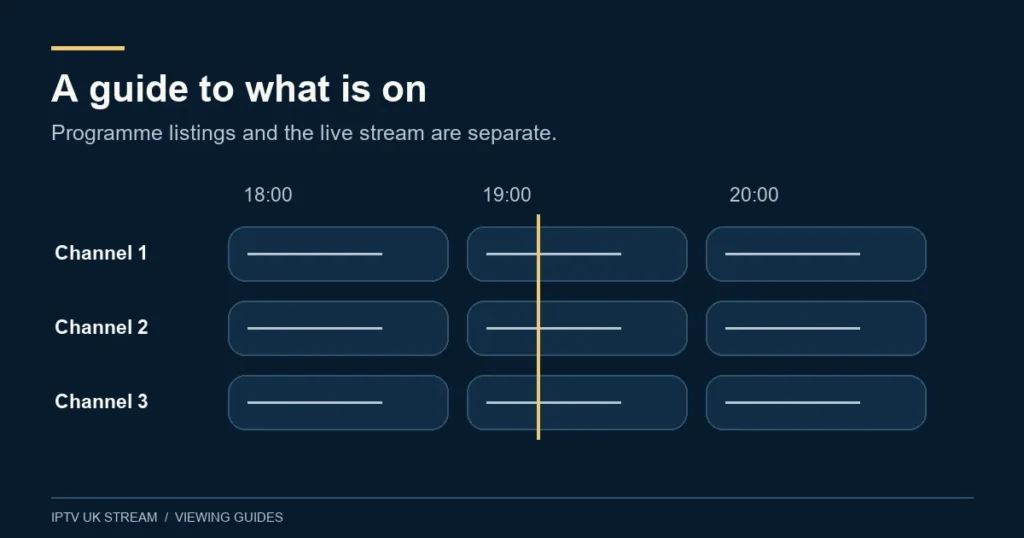
What an EPG tells you
A guide commonly presents programme names alongside channel rows and time slots. Depending on the player and supplied data, it may show descriptions, current and upcoming programmes or other details. Do not assume every player displays the same information simply because it accepts the same account.
Freeview’s official help describes guide views that show what is on now and allow browsing across the schedule. That provides a familiar example of what an EPG does; it does not mean Freeview’s data or service is supplied through IPTV UK Stream. See Freeview’s TV guide explanation.
The important distinction is between information and content. A programme title can be present while the corresponding stream is unavailable, and a working stream can have an empty guide. Treat these as separate symptoms when deciding what to check or what to report to support.
Set a clear starting point
Begin by checking the date and time shown on the device. Use the appropriate UK local time setting and verify the current clock against a reliable source. If the device clock is wrong, correct that first before applying a manual guide offset, otherwise one adjustment can conceal another problem.
Next, choose one familiar channel whose current programme you can identify. Compare the guide’s title and start time with the broadcaster’s published schedule. Note whether the mismatch is a consistent time shift, an entirely different programme or missing information. Each pattern points to a different question.
Write down the player name and version. Guide controls can have different labels and behaviour between apps. This article explains the checking process rather than inventing an exact menu path for every player. Follow the player’s current documentation or ask support if an option is unclear.
When the guide is blank
First establish the scope. Is the guide empty for every channel, one category or a single entry? Open a channel to see whether playback works. If video plays but all guide rows are empty, describe that distinction to support; it avoids treating a schedule issue as a total account failure.
If your player provides a guide refresh control, use it once and allow the operation to finish. Avoid repeatedly triggering refreshes while the app is still processing. Keep the internet connection available and note any error. Do not enter a random EPG address from an online forum to fill the gap.
Some services or player configurations may require separately supplied guide details. Use only information confirmed for your own account and player. Never assume that a guide URL found in another person’s screenshot is safe, compatible or authorised for your use. A complete URL may also contain private access details.
When the guide is shifted by an hour
A consistent one-hour difference is worth checking against device time settings, automatic daylight-saving handling and any manual offset already applied in the player. Do not immediately change every available setting. Record the current state, then adjust one relevant option and compare the same programme again.
Check whether the shift affects all channels or only one group. A device-wide clock problem and a data problem affecting one feed are not equivalent. If one channel is correct while another is shifted, report both examples; that comparison is more useful than a general statement that the whole guide is wrong.
Be especially careful when examining programmes close to midnight. The start date matters as much as the displayed hour. State the date and UK local time in a support report, and say whether you were looking at the current day or a previous-day listing.
When the right channel has the wrong programmes
Check the exact feed name and region. Similar channel names can represent different editions, time-shifted services or quality variants. The schedule needs to correspond to the feed being watched. A familiar logo or an abbreviated label does not establish that the underlying mapping is correct.
Compare more than one programme on the same row. If the whole evening resembles another channel’s schedule, a mapping issue may be involved. If only one item differs, there may have been a schedule change. These are possibilities to investigate, not a remote diagnosis based on a single screenshot.
Save the visible channel label, expected programme, displayed programme and date. If support requests an image, crop it to the relevant guide row while concealing account information. The channel availability guide explains why region and exact feed identity matter.
Future listings and schedule changes
Ask how far ahead information is available for the channels you use. A guide with several days of data in one category does not establish the same coverage everywhere. Do not plan an important recording or viewing session around an assumed guide depth.
Live events can run beyond their expected slot, and schedules can be revised. Where timing is important, compare the latest official event or broadcaster information. An earlier EPG entry may help identify the programme, but it should not be your only source for a changed kick-off or delayed broadcast.
A guide refresh does not create content that has not been supplied. If the future schedule ends on a particular date, repeatedly clearing the app may not extend it. Ask whether more data is expected and avoid destructive troubleshooting that removes favourites or account settings without a clear reason.
EPG, catch-up and recording are different features
A player may let you select programmes in the past, but that control does not prove an archive exists for every entry. Confirm whether the chosen channel supplies catch-up, what dates are available and whether the player supports the required playback method. The catch-up guide covers those checks in detail.
Recording is another separate feature. It may depend on the player’s capabilities, device storage, permissions and account terms. Do not assume that a record icon guarantees a successful recording or that a background recording has no effect on simultaneous connection use. Ask before relying on it for a programme you cannot miss.
Similarly, a reminder is normally a navigation aid rather than proof that viewing will begin automatically. Test the behaviour your player actually provides. For an important programme, keep an ordinary calendar reminder until you understand the app’s controls.
Make the guide easier to use
If your player supports favourites, build a short list of the channels your household uses most. This can make navigation more manageable without changing the underlying catalogue. Keep regional versions distinguishable and avoid renaming several entries to the same short label.
Check text size, contrast and remote navigation from the normal viewing position. A guide that is readable on a phone held close to your face may be uncomfortable on a television across the room. If readability is essential, make it part of your compatibility assessment before choosing a longer subscription.
Keep a note of any custom offset or guide setting you change. If a later update fixes the original issue, an old workaround may become the cause of a new mismatch. Returning to a known setting is easier when you have recorded what changed.
EPG questions
Does an empty guide mean the subscription has stopped?
Not necessarily. Check whether content plays and whether the problem affects every channel. Report schedule and playback results separately.
Does a past programme entry mean I can replay it?
No. Catch-up must be available for that channel and time, and supported by the player. A historical listing alone is insufficient.
Should I clear all app data to fix the guide?
Start with non-destructive checks. Clearing data can remove account details and preferences, so only take that step when you understand the recovery process and have a relevant reason.
Where can I find related help?
The guide hub connects device, content and setup topics. If the guide is central to your decision, assess it on the intended screen during a suitable available trial.