
IPTV UK setup guide: prepare your device and first stream
Start IPTV setup by identifying your device, confirming a compatible player and obtaining the correct authorised access details. Test one stream before adding other devices. Installing an app alone does not supply a subscription, activate a plan or confirm that a particular programme is available.
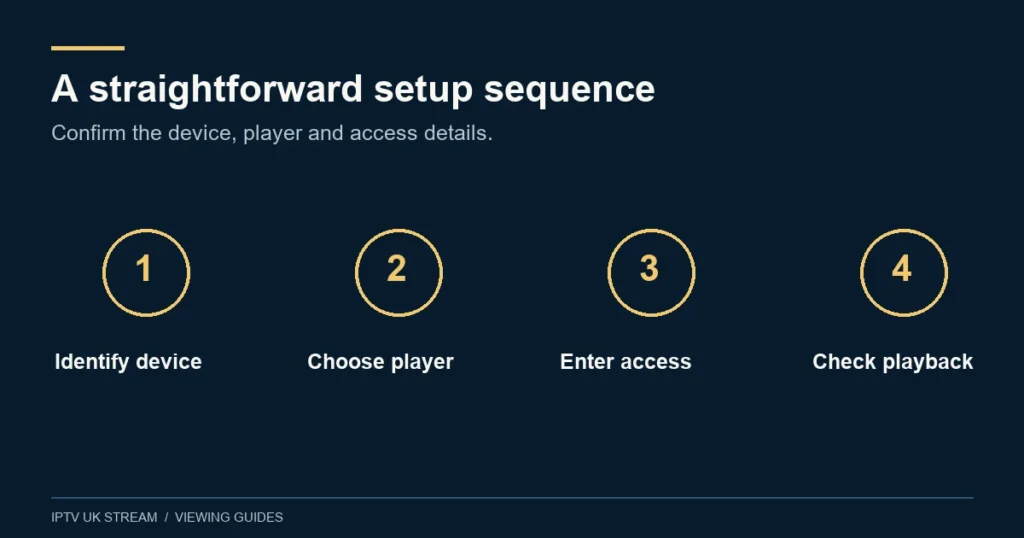
Step 1: identify the actual device
Write down the television or streaming-device model, approximate year and operating system. Brand names alone are not enough: two televisions from the same manufacturer can support different apps. If you use a connected stick or box, the player runs on that device rather than on the television’s own operating system.
Check how you intend to control playback. A lounge setup usually needs comfortable remote navigation, while a tablet may use touch controls and headphones. Note any essential accessibility requirements, such as subtitles or a readable programme guide, before choosing a player.
Use the device’s official support information to check its supported software and update process. The NCSC advises keeping smart-device software current and checking manufacturer support periods. Its smart-device guidance is a useful starting point for preparing connected equipment.
Step 2: confirm the player and its separate terms
Ask which player is suitable for the exact device and access method you will use. A player is the software that presents and plays content; it is not automatically the content provider. Some players have separate activation or licence terms, so confirm those before buying an app.
Install through the device’s official app store or the verified publisher route appropriate to that device. Check the publisher identity, not only the app icon or a similar-sounding name. Avoid copying installation instructions from an unrelated model or using an unknown download merely because it includes IPTV in the title.
This general guide does not prescribe one menu path for every television, stick or phone. App interfaces and store availability can change. Follow the relevant current device guide or contact support with the model and app name when a step differs from what you see.
Step 3: prepare the connection where you will watch
Use the room and network connection intended for everyday viewing. Confirm that the device has ordinary internet access before entering account information. If another trusted app cannot connect either, resolve that broader connection issue first rather than repeatedly changing IPTV login details.
For a stationary device with a suitable port, a wired connection can provide a useful comparison with Wi-Fi. Ofcom notes that Ethernet often improves the connection and that the location of a router affects wireless reception. Follow Ofcom’s Wi-Fi guidance when reviewing your home arrangement.
Keep your first assessment realistic. A test beside the router may not describe performance behind the television in another room. Note other household activity and use the normal viewing position. There is no single speed figure in this guide that guarantees every source, resolution and device combination.
Step 4: enter only the details supplied for your access
Wait for confirmed account instructions before configuring a paid plan or manually published trial. Use the access method support specifies for your player. Do not invent a server address, borrow someone else’s credentials or assume a code printed in an online tutorial belongs to this service.
Enter the supplied fields carefully and preserve their exact content. Check for accidental spaces, omitted characters and confusion between similar letters and numbers. If the app asks for a field that was not supplied, stop and ask which setup method is intended rather than guessing.
Keep credentials private. A full playlist or stream address can contain login information, so treat it as sensitive even if it looks like an ordinary web link. Do not include it in public screenshots or paste it into third-party checking sites. Save account details in a secure place so you can recover the configuration if needed.
Step 5: check one stream before adding complexity
Open one available item on one device. Confirm that the picture and sound work, the controls respond and you can return to the menu. Start with an ordinary available programme rather than waiting until a major live event to discover that the player needs configuration.
Check the features that matter to you separately. A working live stream does not establish that the guide, subtitles, catch-up or on-demand library behaves as expected. Test an appropriate item for each required feature and note the result instead of assuming that one successful screen proves the whole setup.
If you need high-resolution playback, confirm the source and complete device chain. A 4K display alone does not establish native 4K content. Use the same television input and audio equipment you will use normally, particularly if a soundbar or receiver sits between the player and display.
Step 6: organise the guide and favourites
Set the device to the appropriate date and UK local time. Open the programme guide and compare one familiar channel against its published schedule. If the guide is shifted or blank, investigate that separately from playback; avoid changing multiple offsets merely to make one row look right.
If supported by the player, create a short favourites list with the channels your household actually uses. Keep regional editions distinguishable. A manageable list can make navigation easier for someone who does not want to browse the entire catalogue every evening.
The EPG guide covers schedule issues, and the catch-up guide explains replay checks. Use these when a specific feature fails rather than treating every issue as a reason to reinstall the app.
Step 7: add other devices within the connection allowance
Count the streams that will play at the same time, not just the number of apps installed. If one person watches in the lounge while another uses a bedroom television, that is concurrent viewing. Confirm the selected plan’s connection count before starting both.
Set up each additional device separately and record its player details. Preferences such as favourites or progress may be local to a player, so do not assume they will automatically transfer. Check the actual behaviour if moving between screens is important to your routine.
Ask how the service counts recording, multi-view or other features that may open extra streams before relying on them. A player offering a button is not confirmation that the account permits the resulting use. Keep the setup within the authorised connection allowance.
Diagnose problems by the stage that fails
| Symptom | First useful check |
|---|---|
| App will not install | Confirm model, operating system, publisher and store availability. |
| Login is rejected | Check the supplied method and exact field values without exposing them. |
| Nothing plays | Check ordinary internet access and note the error. |
| One item fails | Record the exact channel or title and compare another available item. |
| Guide is wrong | Check date, time, region and guide settings. |
| Picture pauses | Note the connection method, household activity and affected items. |
Change one thing at a time and keep a short record. Restarting the player can be a reasonable early check, but deleting all data or resetting the device removes configuration and may create extra work. Before a destructive reset, understand what will be lost and how access will be restored.
A useful support message includes device model, app version, the stage that fails, exact error and whether another item works. Provide a credential-free screenshot if helpful. Do not send unrelated personal information or payment details to explain a playback problem.
Setup questions
Does installing a player activate my subscription?
No. Player installation and authorised content access are separate. Wait for the appropriate account or trial instructions.
Should I buy a new device first?
Check your existing model and essential requirements before spending money. A clear compatibility answer may resolve the question without replacing equipment.
Why does my phone work when my television does not?
They may use different players, operating systems or network connections. Record both setups and compare the specific point of failure instead of assuming identical compatibility.
Where should I go next?
Use the guide hub for device-specific help and the channel checklist for content questions. Choose a plan once the important compatibility points are clear.