
Hot Player for IPTV: setup and activation explained
Hot Player is a media player into which you add your own viewing source. Check the exact application and device first, then arrange the appropriate activation and playlist setup. Activating the player does not extend a streaming subscription beyond its selected term.
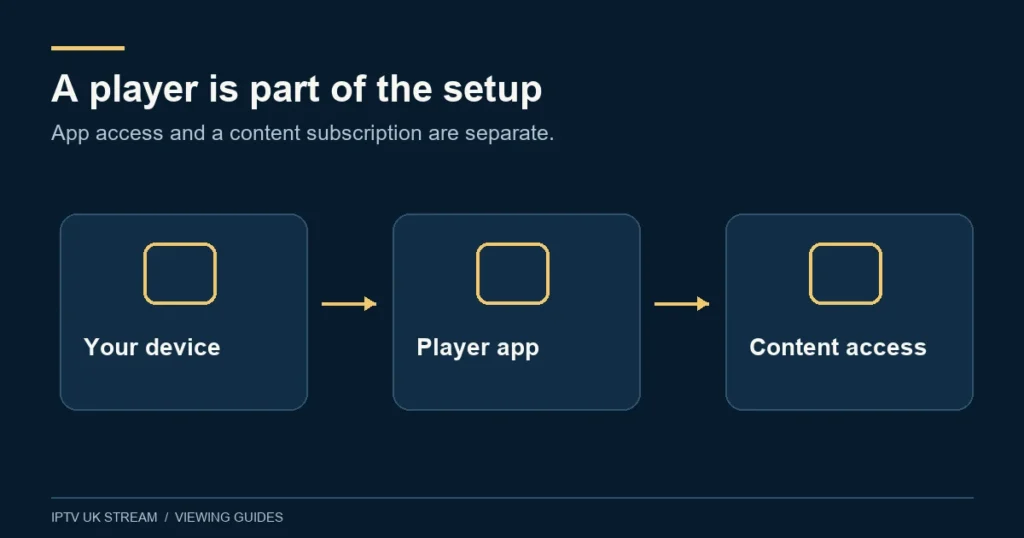
What Hot Player does in your setup
The player provides the interface used to open and organise a supplied playlist. HotPlayer’s publisher website states that the application supplies no channels and warns about unrelated websites using its name to sell packages. Verify the publisher route and the application listing before assuming that a search result represents the software developer.
Think of your setup as three separate records: the device and player edition, the player’s activation status, and the viewing account with its own term and simultaneous allowance. Keeping those records separate makes it much easier to answer a message such as “activation expired” or “playlist unavailable”. They refer to different parts of the arrangement.
This guide explains decisions and checks rather than promising a tested combination for every television. Start with the device compatibility hub if you have not yet established the exact platform. A player advertised across several platforms can still vary by model, store region and software edition.
For a comparison of player roles and selection questions, use the IPTV player apps hub. Choose the interface and supported workflow that fit your device before arranging a licence.
Check the correct application before activation
Search your device’s supported app store and compare the listing with the publisher’s current information. Record the app name, publisher and version. If support has suggested a particular edition, ask for clarification when your store result differs. Do not pay to activate one similarly named application while following instructions for another.
Open the installed application and test its basic navigation. You should be able to reach the settings, read any displayed device identifier and return to the main screen with your normal controls. On a television, do this with the remote rather than relying on a temporary mouse. On a touch device, ensure controls fit the screen.
For native TV installation questions, use the Samsung guide or LG guide. For a separate streaming device, identify its operating system first. In particular, the Fire TV guide explains why an older installation tutorial may not apply to every current stick.
Understand the Premium plan wording
The published Premium feature list includes “Hot Player / IBO Lifetime Activation”. The streaming plan itself still runs for the selected one, three, six or twelve months. The wording does not mean lifetime streaming and does not mean both named applications are automatically supplied together. Confirm which eligible player and device will be used when arranging your plan.
Where a lifetime player activation is involved, its meaning is governed by that software’s applicable licence. HotPlayer’s published terms describe its lifetime activation in relation to the continued operation of its service. Do not treat that as a promise that a particular television, operating system or app edition will remain supported forever.
Before making a separate player payment, ask whether your intended activation is already covered by the selected Premium arrangement. Keep any confirmation with your device record. This avoids duplicate spending and makes it clear which support route should answer a later activation question.
Prepare the playlist association carefully
Follow the current method for your exact installed edition. If the application displays a device identifier for a playlist-management process, copy it accurately from that app. Do not substitute a number from another television, a router label or an old screenshot. The identifier must correspond to the installation you are trying to configure.
Use only the playlist or access details supplied for your authorised viewing account. A playlist link can include a private token, so avoid pasting it into public screenshots or generic online tools. Where a management page is required, verify its origin through the application or publisher guidance rather than a sponsored search result.
Label the profile clearly, especially if you have old demonstration entries. A friendly name helps you identify the correct list but does not change the underlying access. If the player reports a problem immediately after adding the source, save the exact wording and verify the format before deleting and recreating several profiles.
Make a useful first viewing check
Allow the list to finish loading, then open a small sample of content you actually intend to watch. Check a live item first and an on-demand title separately where available. Confirm picture and sound, then test the return route to the list. A successful import establishes only that some list information loaded; it does not prove every item will play.
Use one active session while testing unless your allowance explicitly covers more. Close playback on a previous device before trying the new one. Read the multi-device guide if several household screens will be used together. App activation on a television and the number of concurrent streams are separate questions.
After basic playback, try search and a short favourites list. HotPlayer’s publisher describes organisation and parental-control features, but verify their behaviour in your edition. For a shared television, choose a small useful group of favourites and establish who keeps any parental PIN. Do not rely on a hidden category alone without checking how the controls actually behave.
When the app opens but the playlist does not
Separate an app-launch failure from a source-loading failure. If the player opens normally, note whether the playlist is absent, rejected or slow to load. Verify that the account is current and that you used the correct input format. A player licence does not repair an expired or mistyped viewing source.
If only some content fails, record representative examples rather than reporting that everything is broken. Compare another item in the same category and one outside it. Where a second confirmed device is available, repeat the same item on the same network with only one session active. This can reveal whether the problem follows the content or the device.
For a blank picture with sound, or sound missing from otherwise working video, include the television model and audio arrangement. Avoid changing several playback settings together. Keep the original configuration and make one reversible comparison at a time.
Protect and maintain the working setup
Keep identifiers, activation confirmations and viewing credentials private. If you share an image for help, crop or obscure sensitive fields. HotPlayer describes a MAC-lock feature on its publisher page; if your edition provides it, understand the recovery process and store the associated details safely before using it.
Before reinstalling, clearing application data or replacing the television, ask how the current licence and playlist association will be restored. A reinstall is not always equivalent to reopening the same saved configuration. Record the working version and profile name so that a later update can be described accurately.
Changing network connection type can also alter what an app displays as its device identifier, depending on the platform and edition. Check before paying again. If you are moving from Wi-Fi to Ethernet to diagnose buffering, preserve the original activation information and explain the change to support.
Hot Player questions
Does its trial message describe my IPTV trial?
No. A software evaluation belongs to the player. The IPTV UK Stream trial information page describes the manual service enquiry route and does not advertise a trial duration.
Will activation guarantee every channel in 4K?
No. Activation concerns software use. Content availability and the complete playback chain determine resolution. Use the 4K requirements guide to assess that separately.
Who should handle a problem?
For viewing-account or plan questions, use Contact. For an app-store purchase or publisher licence issue, retain the relevant purchase confirmation and use that publisher’s verified support route. Describe which stage failed so the enquiry reaches the right place.