
4K IPTV requirements: check the whole playback setup
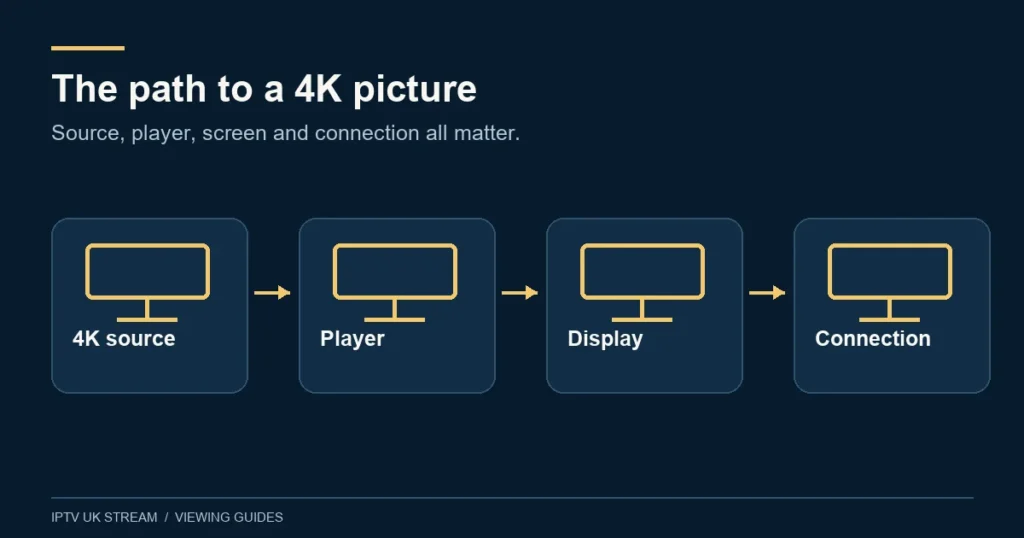
A 4K television is one part of the picture. To assess a Premium 4K option, check the actual source, the player, the display path and the connection you will use. The advertised benefit is “4K UHD available”, so availability must be checked for the content you want.
Start with the programme, not the television badge
The useful first question is whether the particular programme or channel you intend to watch is available in the expected format. Premium’s supplied feature is 4K UHD available. It does not identify every 4K item or say that all live television, movies and series use the same resolution.
Write down the exact content you mean. A film title alone may leave the version unclear; a live channel name may not identify a particular event feed. Ask a precise availability question before choosing a tier solely for one viewing requirement. The channel-checking guide can help frame that enquiry.
Keep three statements separate: your display is capable of 4K, your player is set to a 4K output mode, and the source you are watching is actually supplied in 4K. Those statements answer different questions. A setting or badge in one part of the setup should not be treated as proof of every other part.
Use a four-part checklist
| Part | Useful detail | Question to resolve |
|---|---|---|
| Source | Exact channel, film, episode or event | Is this item available in the expected format? |
| Player | App name and version | Does this player support the intended source on this device? |
| Display path | Device, television and any connected equipment | Are the relevant formats supported throughout the path? |
| Connection | Normal room, network type and concurrent use | Does the setup work under the conditions in which you watch? |
Gathering these details does not require buying new equipment immediately. Begin with what you own. If one part is uncertain, identify it before replacing several devices or changing many settings at once. The compatibility hub is a better starting point than assuming that a broad platform name guarantees every configuration.
Keep 4K, HDR and other format claims separate
Resolution and dynamic-range formats should not be treated as interchangeable labels. Apple’s official Apple TV 4K guidance describes separate 4K SDR, HDR, HDR10+ and Dolby Vision display formats, with support depending on the television and setup. That distinction is useful when checking specifications; it does not establish which formats this service supplies.
Ask for the feature you actually mean. If your concern is Dolby Vision, a general answer that content is 4K does not settle it. If your concern is motion during sport, a resolution statement alone does not define the source’s frame rate. If a particular audio format matters, ask about it separately rather than inferring it from picture quality.
The published Premium list does not promise a specific HDR format, codec, frame rate or surround-sound format. This guide deliberately avoids adding them. Confirm the source and your equipment’s capabilities before treating an unlisted technical detail as part of the offer.
Check the route from an external player to the screen
If you use an external streaming device, note the HDMI input and any receiver, soundbar, switch or other equipment in the video path. Apple’s guidance says that some televisions require a particular input or settings for 4K or HDR, and that connected accessories can affect the signal. Follow the manuals for your actual equipment rather than copying another model’s settings.
For an app running directly on a smart television, the setup questions are different from those for a separate box. Record the exact television model, software version and player. A brand name such as Samsung or LG covers many devices, and an instruction written for an external player may not apply to the television’s built-in app.
If you change a setting, note the original value and change one thing at a time. That makes it easier to describe what happened and return to a known configuration. Avoid factory resets as an opening step unless the device’s official guidance or support process gives you a clear reason and you understand the consequences.
Do not borrow another service’s speed requirement
There is no universal bandwidth number established in this guide for every IPTV source and player. Requirements depend on the actual stream and setup. Ask about the intended content and assess it on the connection you will normally use rather than treating a generic internet figure as a guarantee.
For context, Netflix’s own recommendation is a stable connection of 15 Mbps or higher for its 4K UHD service. That is Netflix guidance, not an IPTV UK Stream minimum or a promise that a different 4K stream will work at the same rate. It illustrates why the service and format behind a quoted figure matter.
Ofcom’s broadband guidance notes that time of day and simultaneous household internet use can affect speeds, and suggests testing at different times. A check made beside the router at a quiet moment may not represent your normal television location and busy evening routine.
Assess several screens as a separate requirement
Choosing Premium and choosing enough connections are independent decisions. Premium with one connection remains the one-connection configuration. If several people intend to watch at once, count the actual overlapping streams and confirm that the plan and intended use fit.
The multi-device guide has examples for two to five connections. It also distinguishes the plan’s allowance from the home’s network conditions. Adding connections to the plan does not by itself improve coverage in a distant room or resolve a device that cannot use the intended format.
When assessing several screens, record which content and devices are active together. If a problem only appears when another viewer starts, that is useful information for support. It is an observation to investigate, not enough on its own to prove whether the cause is the plan, network, player or source.
Describe picture problems precisely
“Not 4K” can describe several different concerns: a source is labelled differently, a television reports a different output mode, fine detail looks soft, playback pauses, or colours look unexpected. Start by describing what you actually see and where you see it. Include any exact on-screen message without sharing private credentials.
Note whether the issue affects one item or everything you try. Record whether it occurs on one device or several, and whether the device was recently moved or updated. A short factual record is more useful than declaring that a whole tier does not work based on a single unknown source.
Use the setup guide for a sensible sequence, then contact support with the details. Avoid downloading unofficial “4K booster” software or assuming an app with a similar name is an authorised replacement. Follow the intended player’s official distribution and support route.
Choose a plan after the checks
Once you have confirmed the relevant source and setup, compare the full Premium total for your term and connection count. One connection is £19.99 for one month, £39.99 for three, £49.99 for six or £79.99 for twelve. Additional connections have their own published totals on the homepage.
The subscription guide helps choose the duration without confusing a lower monthly equivalent with monthly billing. If a practical assessment is still needed, read the trial information and ask what can be checked through the manual enquiry process. No fixed trial duration is advertised here.
4K questions
Will every Premium channel be 4K?
No. The benefit is 4K UHD available. Ask about the particular channel or programme; the tier label does not define every source.
Does a 4K output setting prove the source is 4K?
No. An output setting and the source format are different information. Check the actual content details and the relevant player information where available.
Is HDR included because 4K is listed?
No HDR format is promised by the supplied 4K wording. Ask about the specific format and confirm support on your equipment.
Is Netflix’s 15 Mbps recommendation the required speed here?
No. It applies to Netflix’s service. This guide does not present it as a tested threshold for IPTV UK Stream.
Should I replace my television first?
Begin by identifying the actual limitation. Confirm the source, player, display path and connection before spending money on equipment that may not address your requirement.